
Select the surface
Mask the product, garment or material whose color should change.
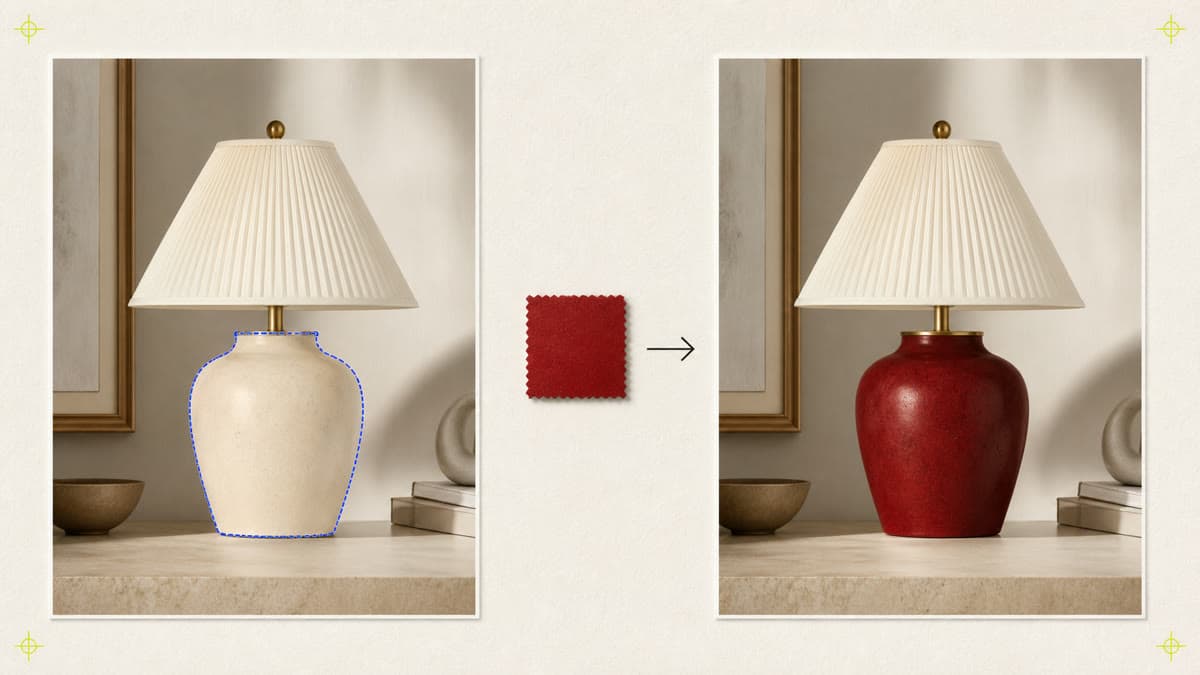
Select the exact surface, name the new color and direct how its material and lighting should remain. Brava creates a separate private variation.
Mask the product, garment or material whose color should change.
Describe target color and ask to preserve texture, reflections, shadows and construction.
The recolored result is saved separately so the original remains available.
Open a compatible private image or upload a new source.
Paint the target area and describe the exact color and material behavior required.
Create the edited PNG, review edge quality and keep it beside the original.
Use the mask brush to paint the exact product, garment or surface before generating.
Describe those requirements explicitly. Generated edits aim to preserve unmasked content and the requested material cues, but should be reviewed.
No. Brava saves the recolored PNG as a separate private asset.
Mask the surface, name the finish and create a private variation without losing the source.
Create a color variation