
Choose the source
Select the product, object or person you want to isolate from a private image.
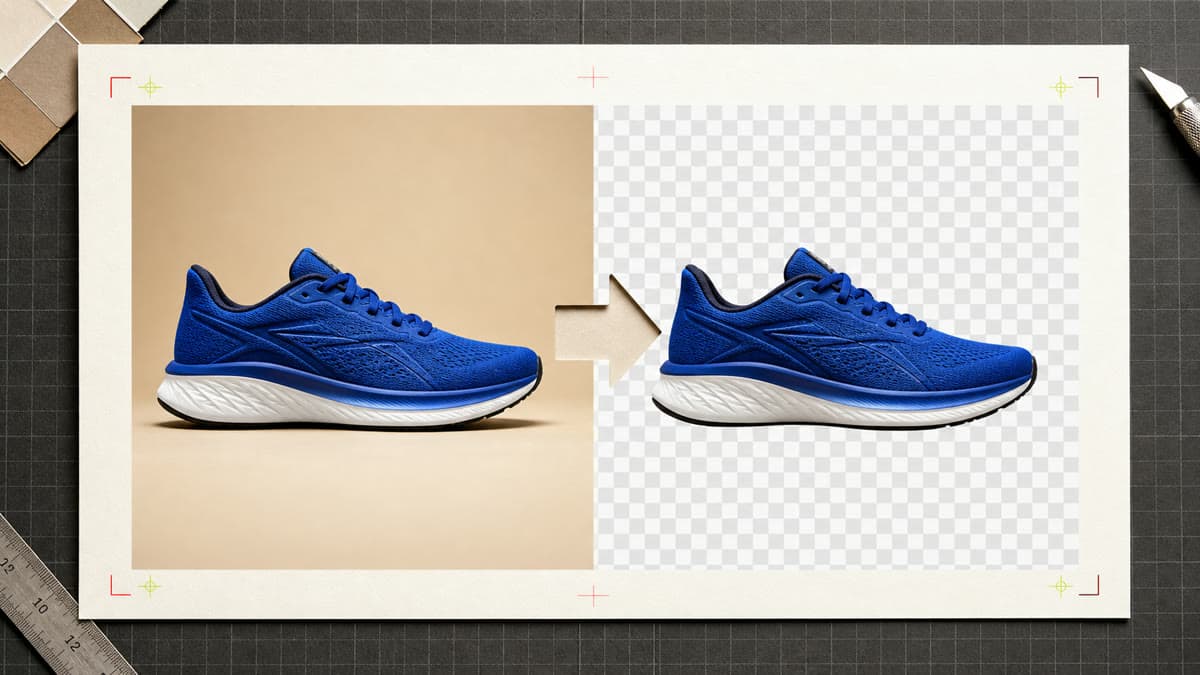
Choose a private image and Brava automatically isolates its subject into a transparent PNG without overwriting the source.
Select the product, object or person you want to isolate from a private image.
Brava detects the subject and creates a new file with clean transparency around it.
Download the PNG or continue into another edit, format or editable design.
Select a compatible private Library image or upload a new source.
Run the automatic cutout without tracing a mask or choosing a technical model.
Process the image and save a separate transparent PNG in the Library.
No. Brava saves the transparent PNG as a new private asset and keeps the source intact.
Yes. Subject isolation runs automatically for people, products, objects and other clear foreground subjects.
The focused workflow creates a PNG so transparent areas are preserved.
Choose the source, remove its background and keep a transparent PNG ready to use.
Create transparent PNG